Customers
The digital receipt by email
When you create an order, the customer gets their receipt by email. How it works, how to resend it and what to check if it doesn’t arrive.
When you create an order, Tintora POS emails the customer their receipt, automatically: the items, the total, what they paid, the balance, when it will be ready and a button to check the order status. It’s the same receipt that prints on paper. It’s on by default and costs nothing.
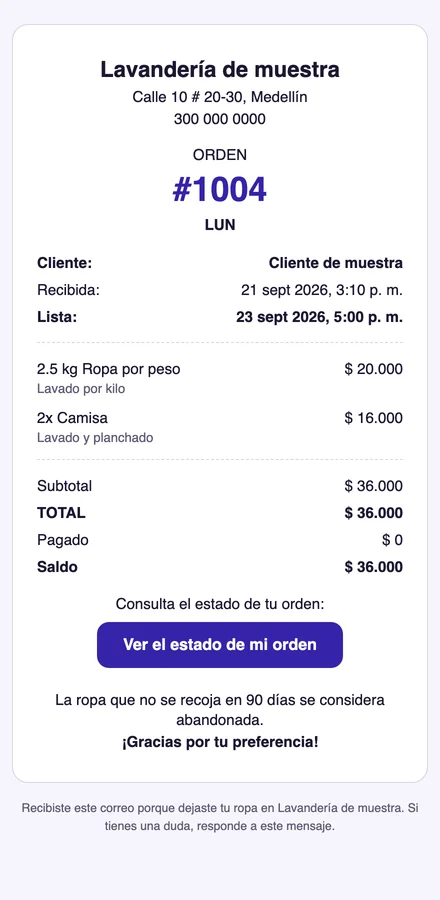
All it needs: the customer’s email
- 1When you create the customer (or on their profile, under Customers), enter their email. Typing it checks the box that says they agree to get emails.
- 2Create the order as usual. The receipt goes out right then.
- 3If the customer has no email, the counter tells you under their name: *No email on file: they won’t get the digital receipt*.
The customer sees the email under your store’s name, and if they reply, the reply goes to the email you set under Settings → Your store.
Resend it
- 1Open the order.
- 2Tap the three dots at the top right and choose Email the receipt.
- 3The screen tells you whether it went out. It goes to the email on the customer’s profile.
Know whether it arrived
Inside the order, under the customer’s name, there’s a Receipt by email line: *Sent to…*, *On its way to…*, *Couldn’t send…* (with the reason) or *This customer has no email*. The full history is under Settings → Customer notifications → Recent notifications.
If it doesn’t arrive
- The order says the customer has no email: add it to their profile and resend the receipt.
- **It says *Sent* and the customer can’t find it: have them check Spam or Promotions**, and make sure the address is spelled right (one extra dot or letter sends it to someone else).
- **It says *Couldn’t send*:** the reason is right next to it. If it mentions a *bounce*, that address doesn’t exist or the mailbox is full.
- It says the platform’s email isn’t set up: reach us through Contact.
Turn it off
Under Settings → Customer notifications, uncheck Digital receipt by email and save. Even when it’s off, you can still send it on request from the order.